The Basics: How to install and set up Ollama + Open WebUI (Linux)
Intro
Running AI models locally gives you complete privacy, no usage limits, and zero monthly fees but only if you know how to set up the infrastructure. Ollama makes it simple to download and run language models on your own hardware, while Open WebUI provides a sleek, modern interface that rivals commercial AI chatbots.
This quick-start guide walks you through installing both tools on Linux, from the initial Ollama setup to deploying Open WebUI with Docker. Whether you're looking to break free from subscription services, experiment with different models, or keep your conversations completely private, this is your starting point for local AI.
Installing Ollama
First we will install Ollama this is how we will manage and run our AI models locally. You can get it here: https://docs.ollama.com/quickstart. Click the download button.
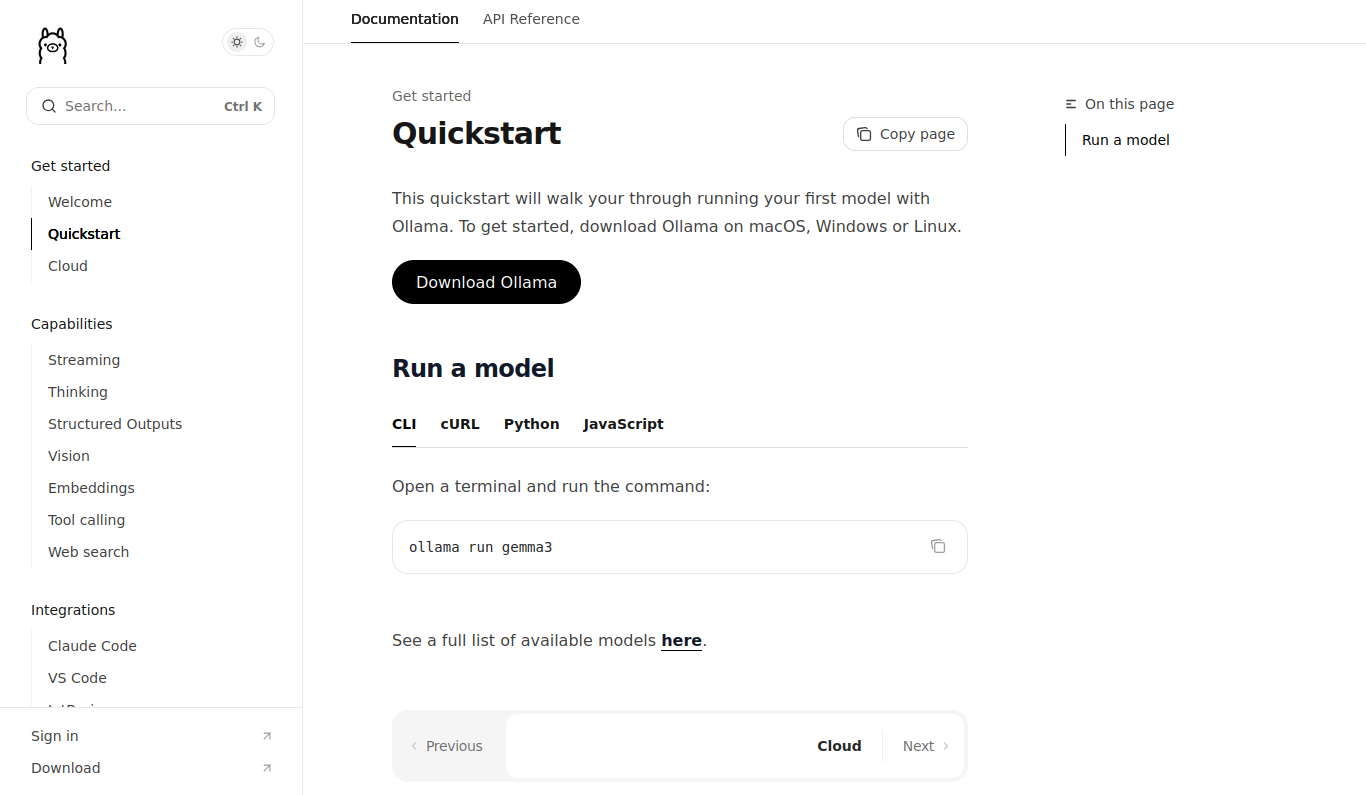
Ollama website download page
Once you click the download button make sure to select the right platform you are running. This tutorial is centered around Linux but setup is basically the same. Notice with linux it gives the following install command:
curl -fsSL https://ollama.com/install.sh | sh
This is the command we will enter in the terminal to download Ollama for our Linux system.
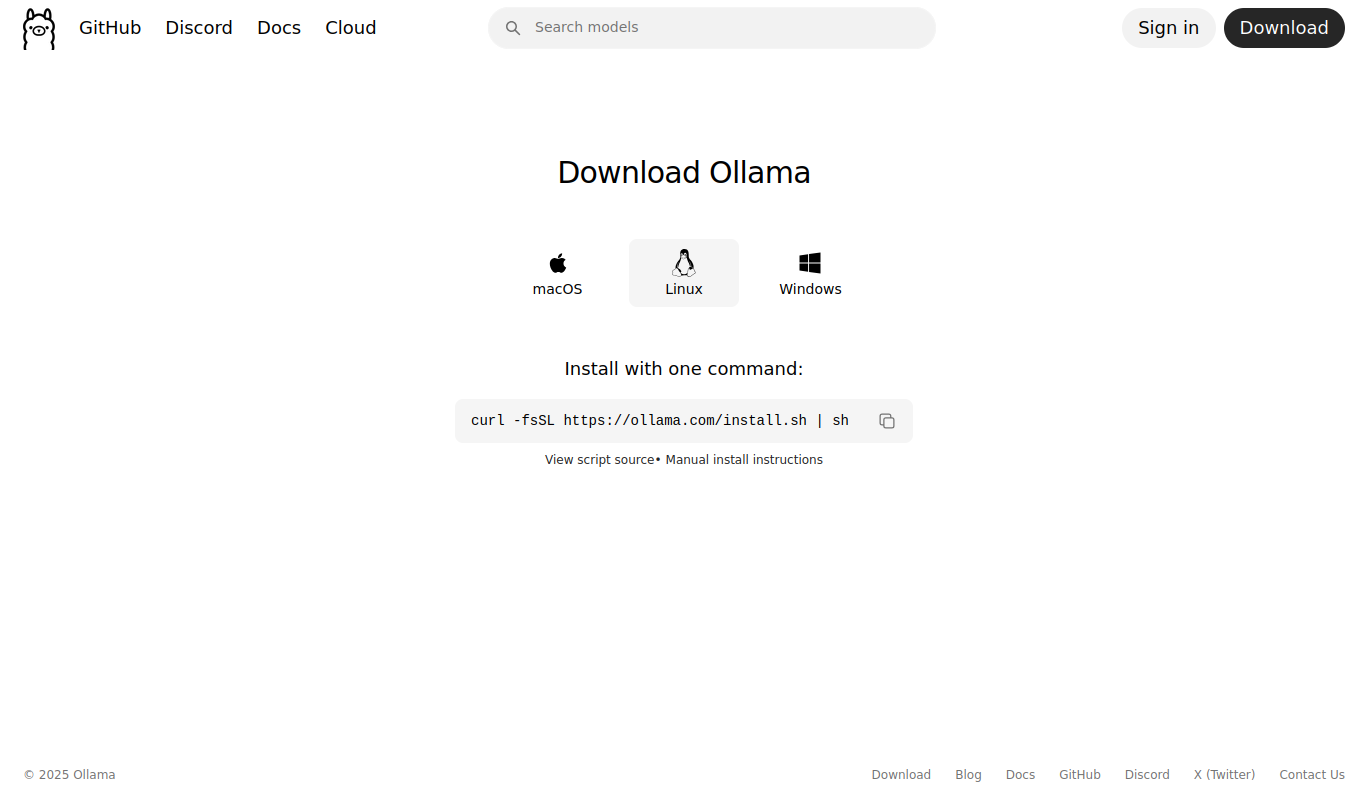
Ollama Download install commands page
Now we are going to do just that. We are going to open a terminal (shortcut: “Ctrl + Alt +T”) and past the same exact command we see on the Ollama website. You will then be prompted to give your password because this requires sudo level permissions.
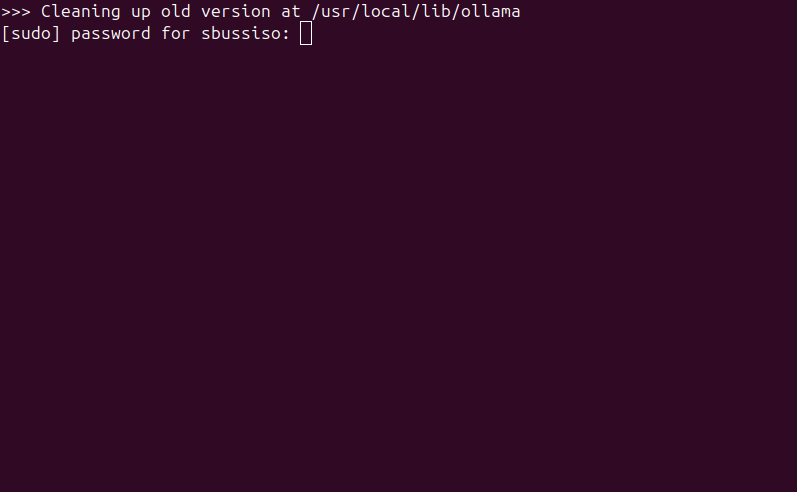
sudo permissions required
Once you enter your password Ollama will start to download. This may take a while depending on your hardware device but Ollama itself is pretty light weight so it should not take very long.
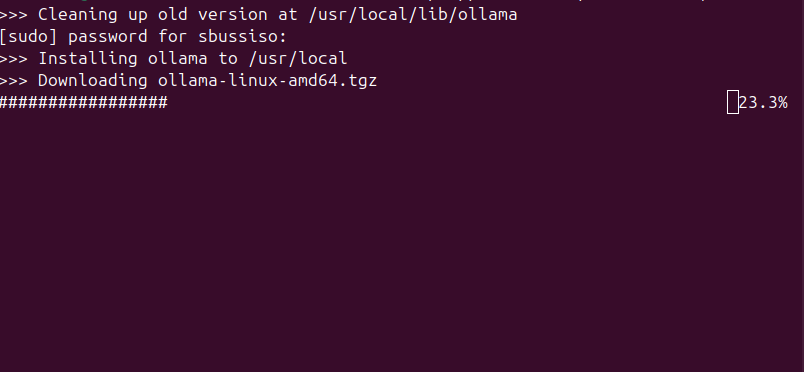
Ollama downloading
We now have successfully installed ollama. We can also verify our installation is correct by typing “ollama —version“ in the console.
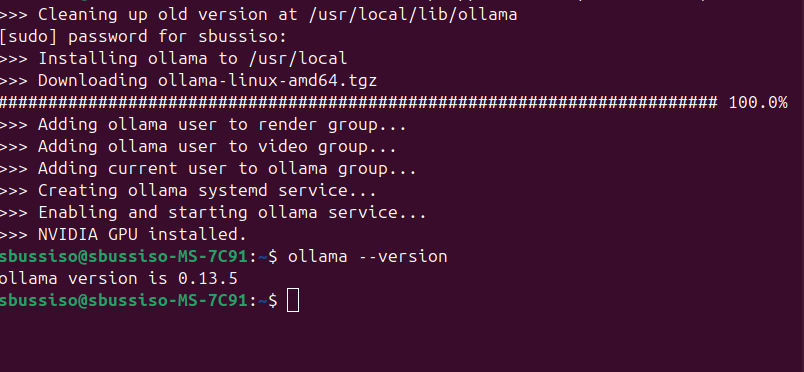
Download complete and version check
Installing a local LLM using Ollama
Now we can verify even further that we set up everything correctly by running the following command to download a model from Ollama to our local computer:
ollama run devstral-small-2
Note: devstral-small-2 is just an example you can download another model. Ollama has a list you can check out on their website https://ollama.com.
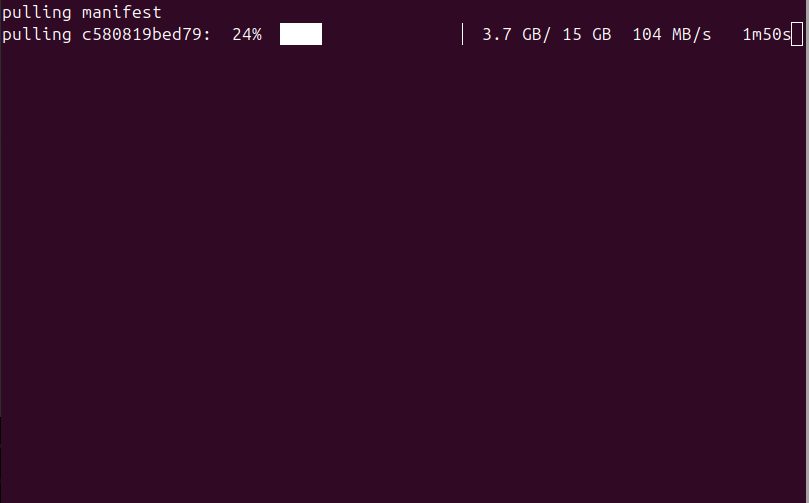
Ollama model download
We can do a quick inference test once our model has been downloaded locally. You do not need Open WebUI, you can chat with all your models through a terminal interface. OpenWebUI is just a great tool if you want a beautiful web UI like Openai and all of the others.
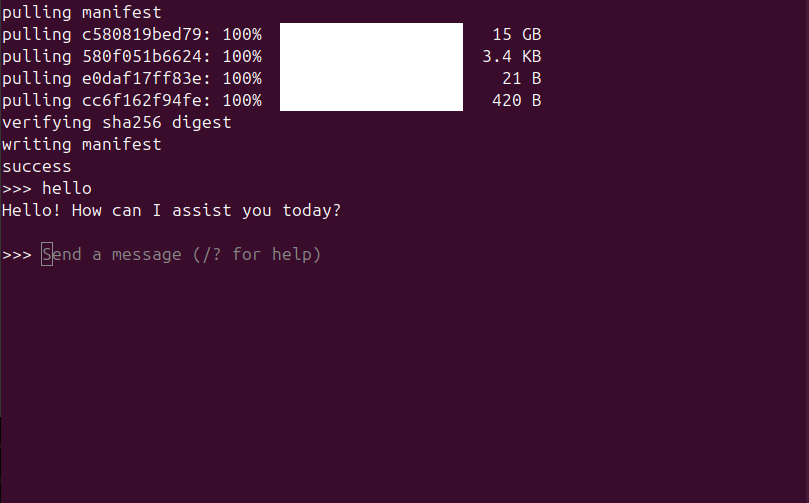
Ollama model inference
Installing Open WebUI
Now that we have Ollama and a local model installed its time to set up Open WebUI for a sleek modern UI interface instead of having to chat with your local AI through the terminal interface only. This will take your local AI experience to the next level!
To install the Open WebUI tool you will need docker for this tutorial as it is the easiest and most straight forward way to setup and use. We are assuming you already have Docker installed for this tutorial.
Now we will open our terminal and use the following commands:
docker run -d -p 3000:8080 --gpus all --add-host=host.docker.internal:host-gateway -v open-webui:/app/backend/data --name open-webui --restart always ghcr.io/open-webui/open-webui:cuda
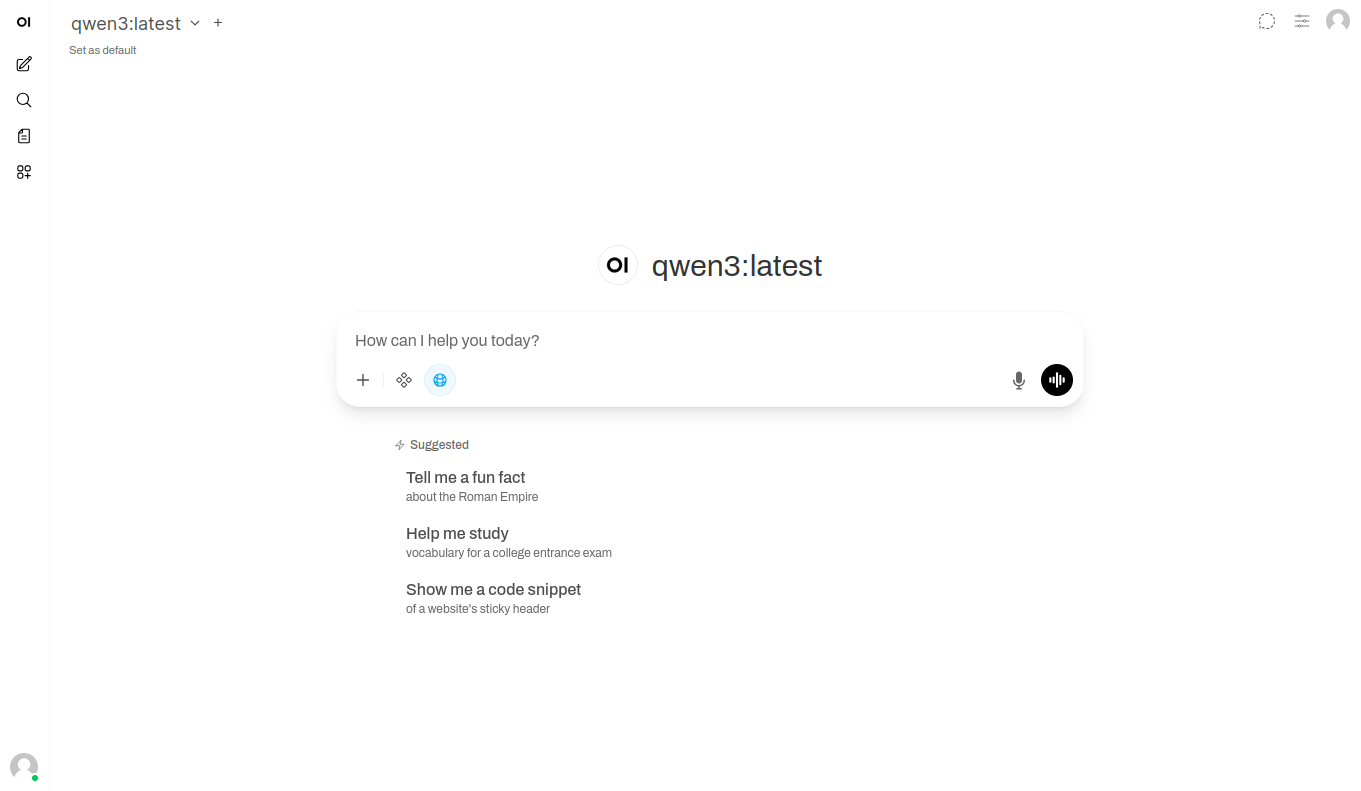
Once Open WebUI is installed you should now be able to go to it in your browser and do the first time setup giving an email and a password. Then once your account is created log out and refresh the page. Once you open the webpage you will be prompted to log in. Go ahead and log in again to make sure your credentials are correct.
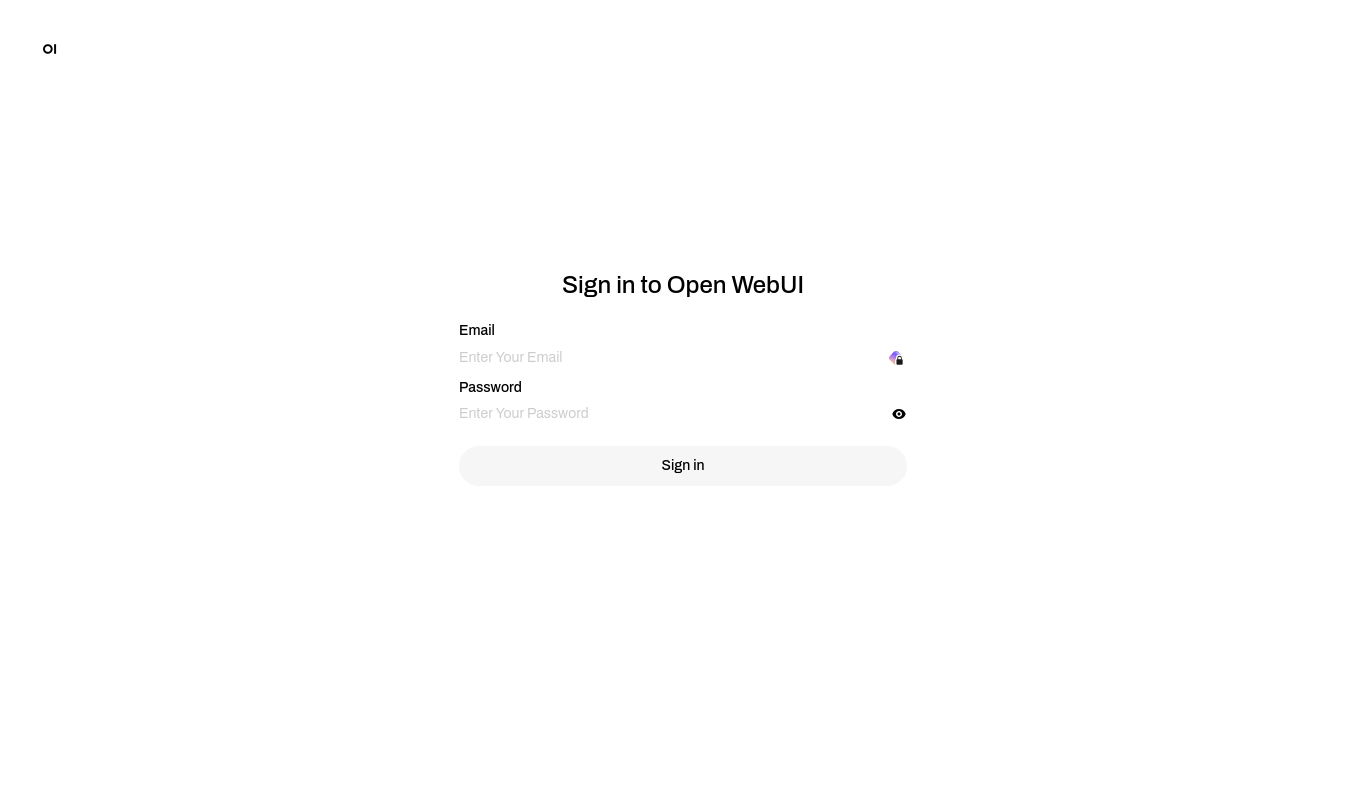
Open WebUI login page
Now your all set! You now have your own local and private space to chat with any Ollama model you want. Keep in mind your GPU matters, what models you can run entirely depends on how powerful your hardware is. The better your hardware, the bigger models you can run and the faster you can run them.
Conclusion
You now have a fully functional local AI setup with Ollama managing your models and Open WebUI providing a professional chat interface.
From here, you can experiment with different models from the Ollama library from compact 3B models that run on modest hardware to larger, more capable models if you have powerful GPUs.
Open WebUI's advanced features like knowledge bases, internet search integration, and MCP tools can significantly enhance even smaller models, making them more capable and reducing hallucinations. Best of all, everything runs locally on your hardware with complete privacy.
Check out our other tutorials for more ways to leverage self-hosted AI tools and build your own AI infrastructure.
Stop renting your digital existence.
Buy a board, spin up a container, take your data back.
