FineFoundry Tutorial: Fine Tune a Model Offline Quick and Easy.
Fine-tuning large language models has traditionally required cloud services, extensive technical knowledge, and a willingness to send your data across the internet. FineFoundry changes that equation entirely. This tutorial walks you through the complete process of creating a custom dataset and fine-tuning an LLM on your own hardware—without touching the internet once. Whether you're concerned about data privacy, working in air-gapped environments, or simply want full control over your AI development pipeline, FineFoundry makes local model customization accessible. In this guide, we'll generate synthetic training data from a research paper, fine-tune Meta's Llama 3.1 8B model, and test the results—all in offline mode.
Creating a Synthetic Dataset offline
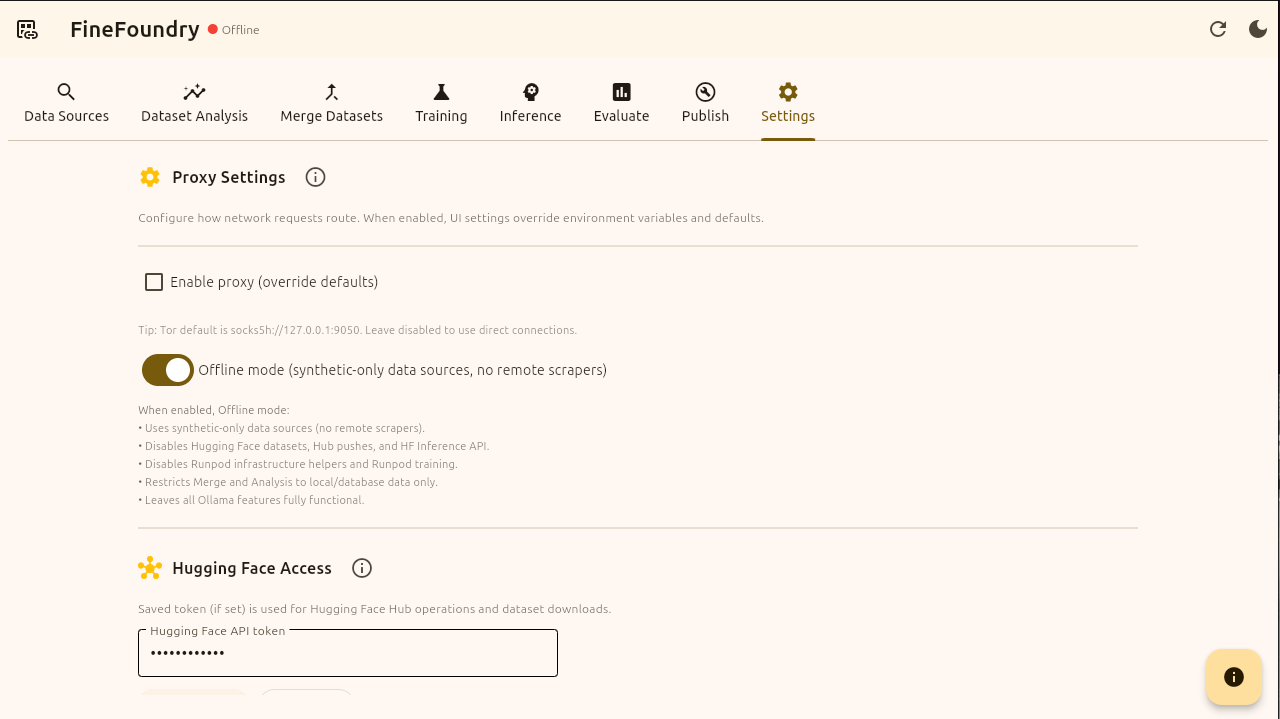
FineFoundry settings tab
As you can see by the top left corner we are in offline mode. Offline mode disables all internet features such as HuggingFace for example for a guaranteed 100% local experience. You can toggle this off and on in the “Settings“ tab. For this tutorial we are going to be in offline mode fine-tuning a model 100% offline!
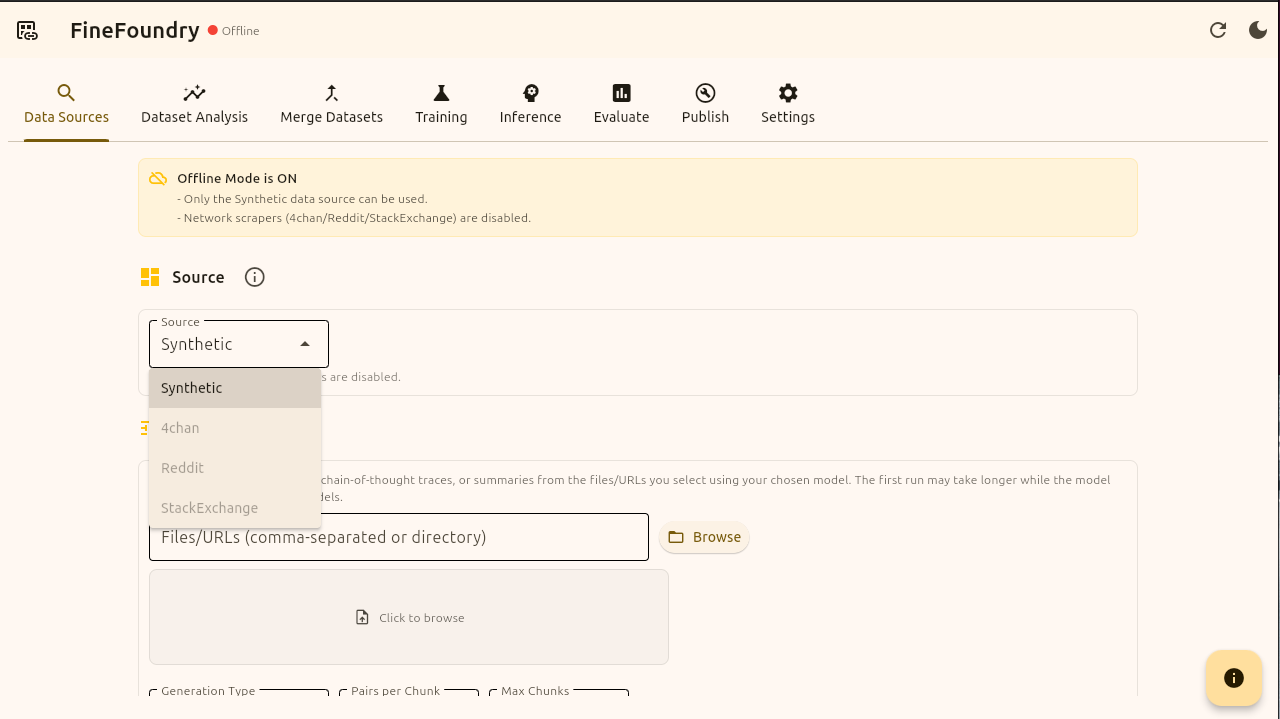
Data sources, source options
This is the Data Sources tab, the main starting point of our fine-tuning flow. As you can see since we are in offline mode only the Synthetic data source option is available. The other data source options such as 4chan, Reddit, and StackExchange are disabled because these are web scrapers that require an internet connection. To use these data sources simply set FineFoundry to online mode in the app settings.
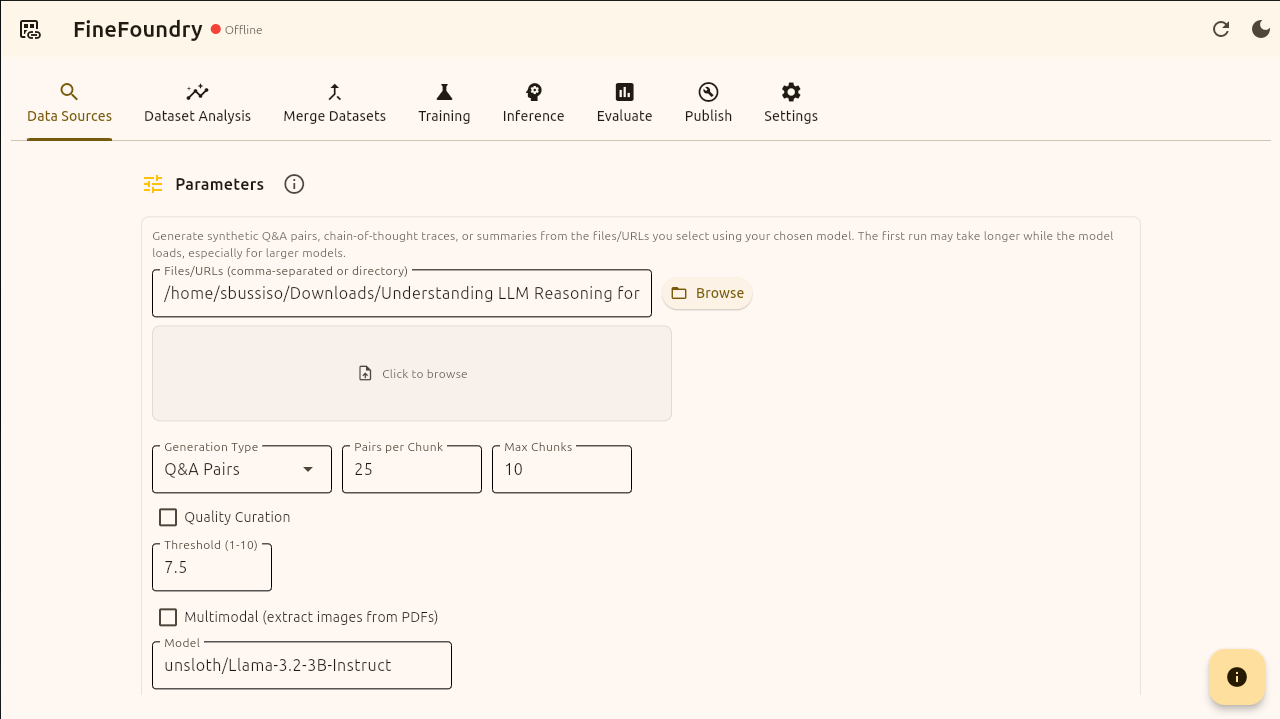
Data sources parameter sections
Now that we picked the “Synthetic“ data source option we then choose the data we want to train on. For this tutorial I am using a PDF research paper “Understanding LLM Reasoning for Abstractive Summarization.pdf“ but you can train with any standard PDF.
There are different types of synthetic data generation such as “Q&A Pairs“, “Chain of Thought“, and “summary“. For this tutorial we are generating synthetic Q&A pairs with the default “Pairs per Chunk“, “Max Chunks“, and “Threshold“ settings.
We are going to be using the model “unsloth/Llama-3.2-3B-Instruct” for generating our Q&A pairs. NOTE: this is NOT the model we are fine-tuning this is the local model used to generate the Q&A pairs given our file input. We recommend keeping this model as the default rather than selecting your own to ensure Q&A quality but you are free to use what you wish.

Data sources run
Now we are officially creating our synthetic dataset. FineFoundry is using our PDF file and creating Question and Answer pairs based off the PDF. This may take a moment to complete. You will see live logs and progress updates if this is working correctly.
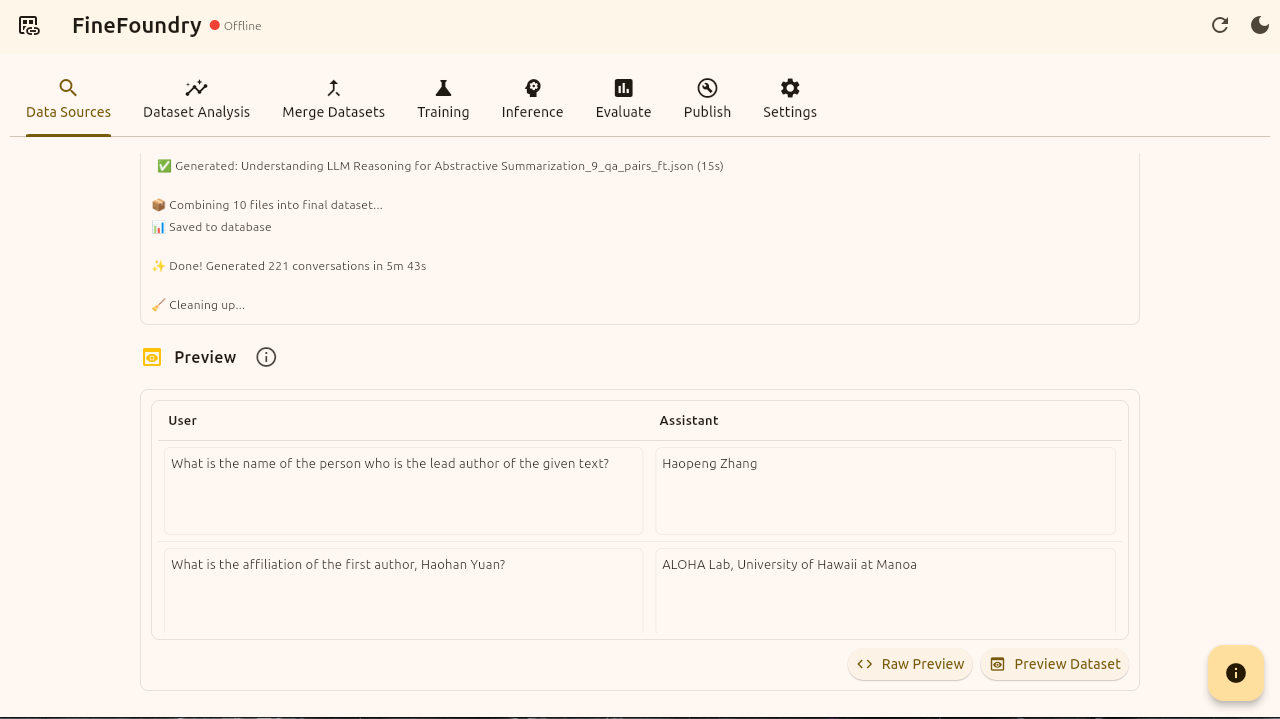
Data sources preview section
It’s done! Our synthetic dataset has been created. Notice the preview section that appears now. We can inspect our dataset further by clicking on the two preview buttons “Raw Preview“ and “Preview Dataset“.
The Raw Preview button shows the raw JSON of the dataset while the preview dataset button shows all of our data points in a pretty structured dataset viewer.
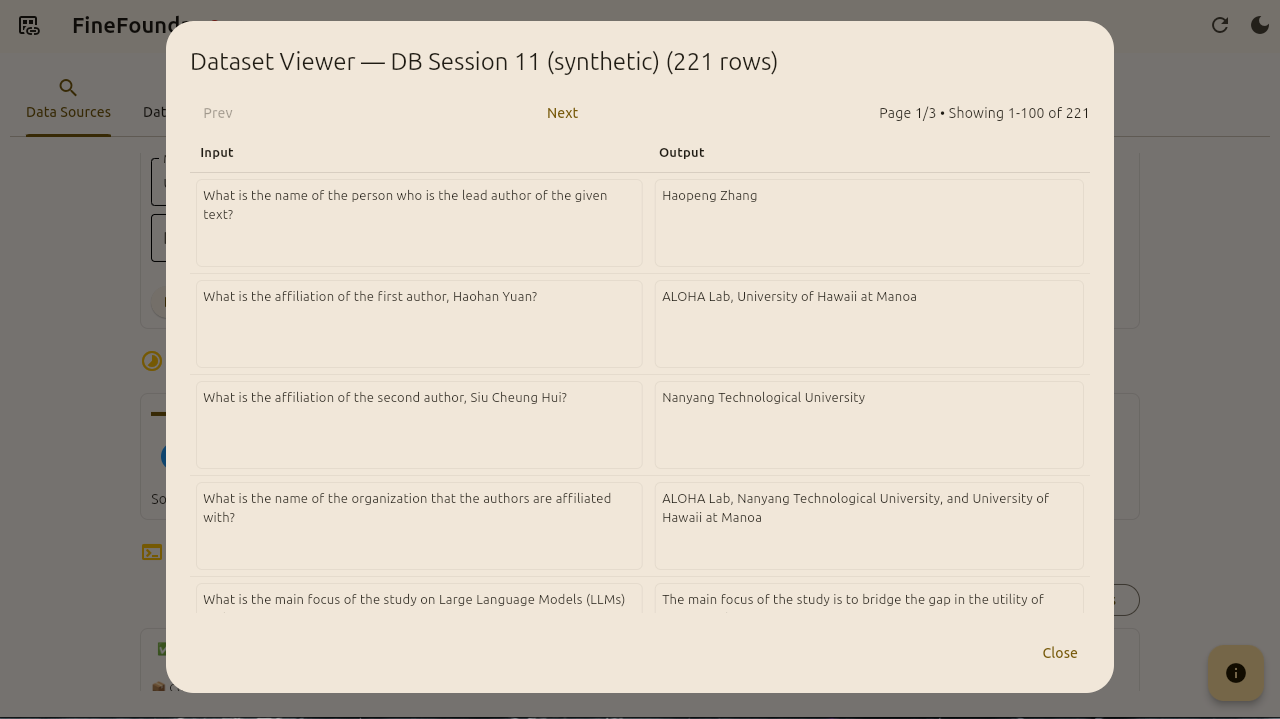
Data sources dataset viewer
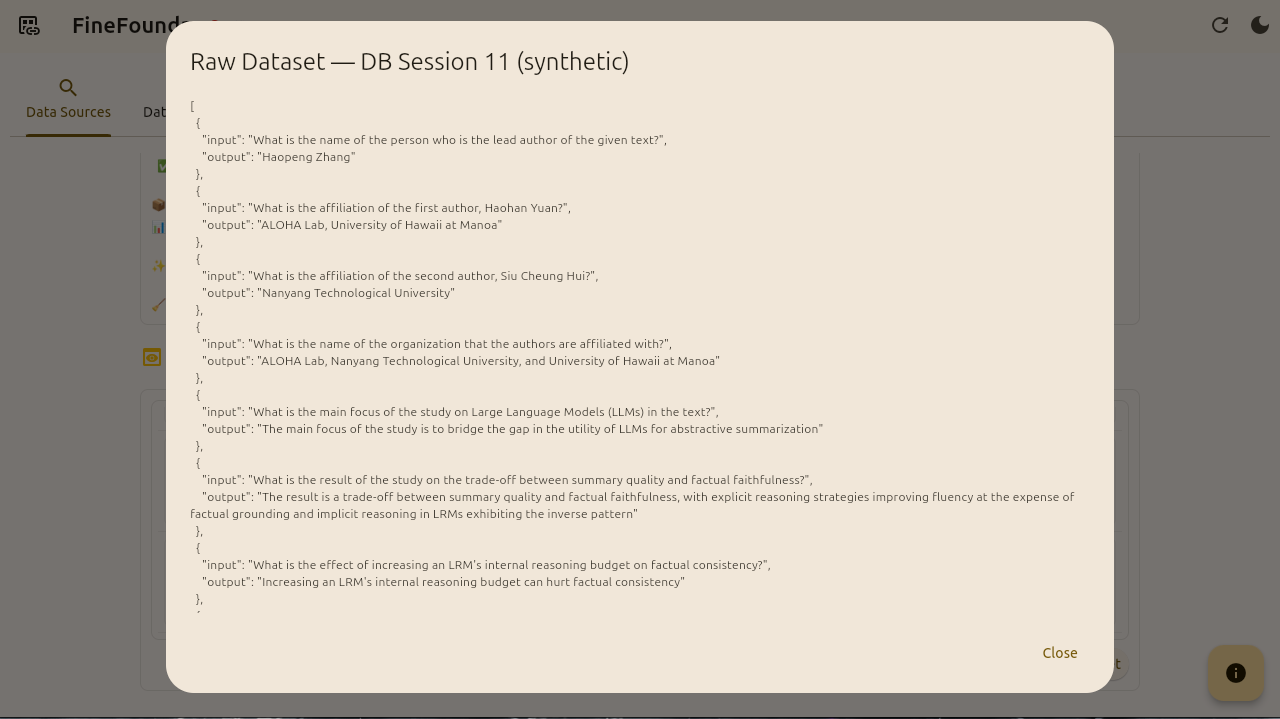
Data sources raw preview
We have just now officially created a training dataset from scratch with FineFoundry using the synthetic dataset kit entirely offline! What next?
Fine-Tuning a Model Using The Dataset.
Now that we have created and inspected our dataset its time to move on to model fine-tuning! For the sake of making this tutorial simple we are not going to go over the other tabs and features we don’t need right now such as the “Dataset Analysis“ and “Merge Datasets“ tabs. We already have our dataset so we are just going to move on to fine-tuning.
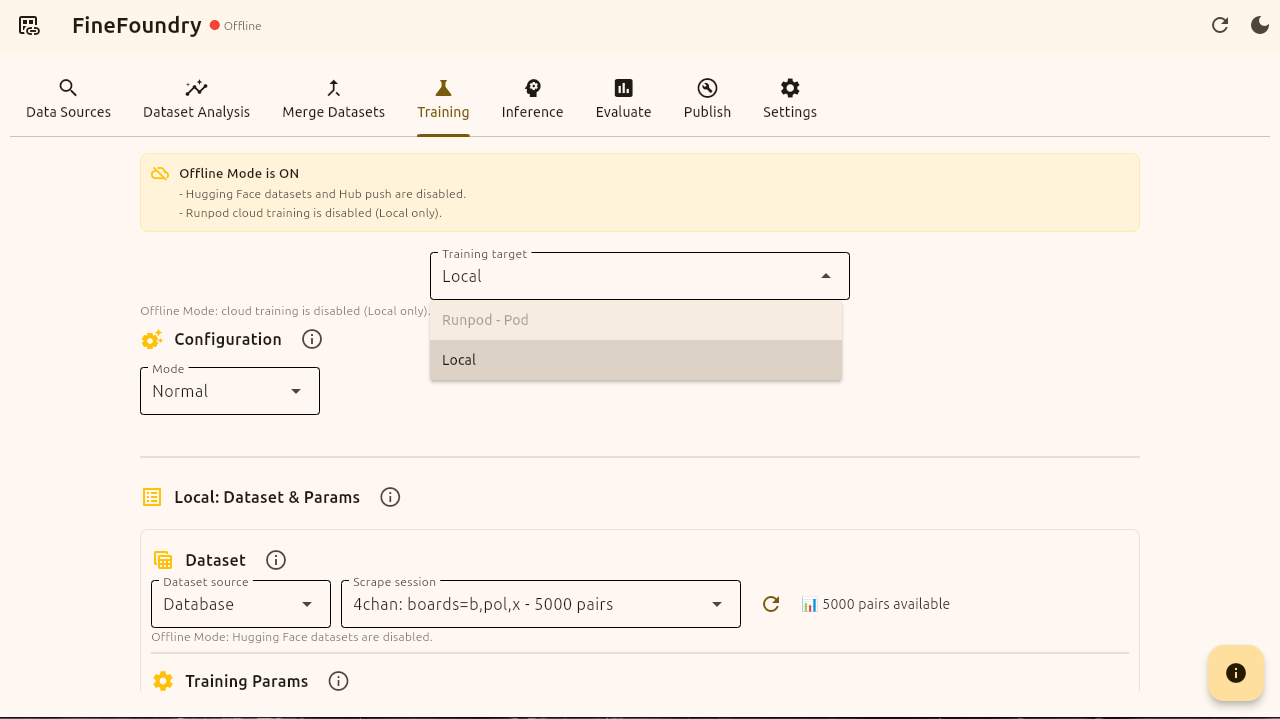
Training tab training targets
Now that were in the training tab notice the two different options and how only one is available. The two options we have is Runpod and Local. We are going to be using the local option because we are in offline mode.
Not everyone has good hardware to fine-tune models so Runpod is a cloud GPU computing option if you don’t have the juice required for local training on your own GPU. Note: Runpod is an online only training option because it is cloud based and not local based.
Once you create a dataset it is saved in the FineFoundry database and can be easily accessed by the training tab. Notice in the image it shows a 4chan dataset that I made previously before this tutorial. We will be selecting our synthetic dataset we just created.
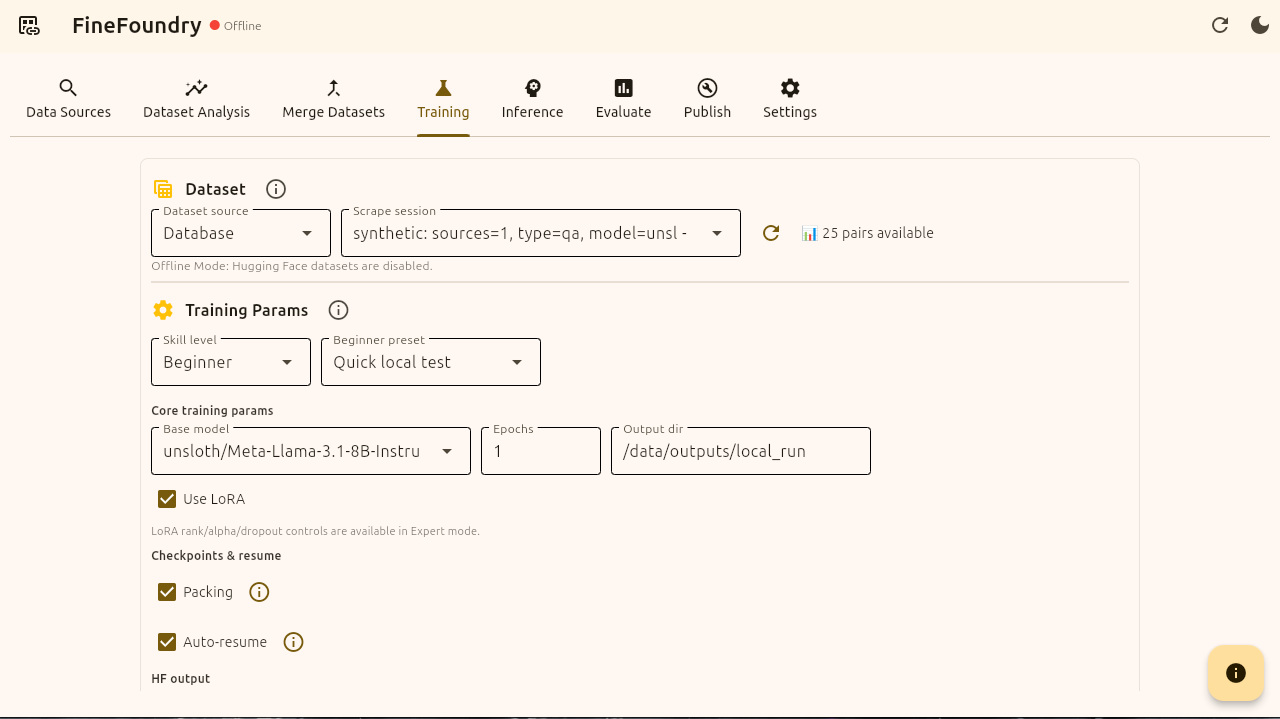
Training tab parameters section
Look at the “Training Params” section. This is where we can either keep it simple or get advanced in specifying the way we train. For simplicity we are going to use the “Beginner“ skill level and just do a “Quick local test“. If you want more control and to choose all of the parameters simply change the skill level from “Beginner“ to “Advanced“ for complete control over simplicity.
We are going to keep all of the defaults and check boxes. Here we are fine tuning unsloth/Meta-Llama3.1-8B-Instruct-bnb-4bit with just one epoch saving the Output to the default standard “/data/outputs/local_run“ location. We are using LoRA and checking the two check boxes “Packing“ and “Auto-resume“ for maximum fine-tuning efficiency.
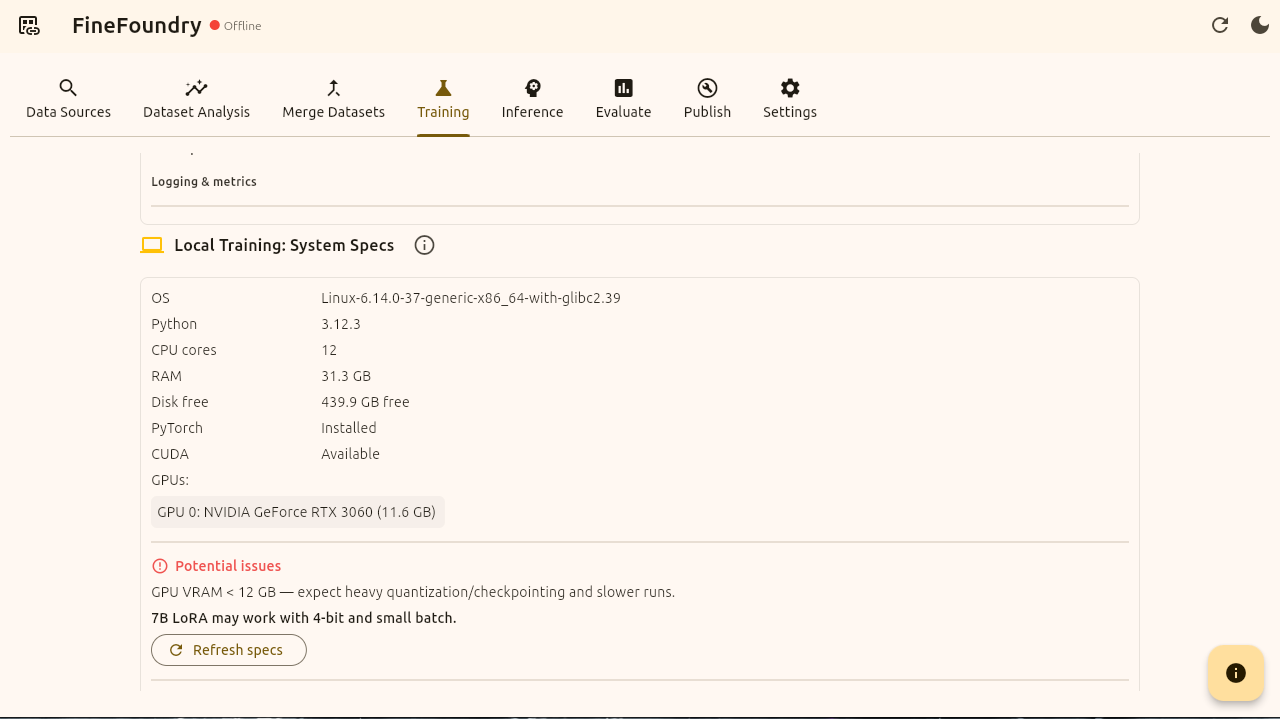
Training tab local system specs section
Now that we have our training parameters set and we are pointing to our dataset we created we can scroll down to the actual Local Training section. Here FineFoundry will examine your hardware specs to see if you will have any issues fine-tuning.
As you can see here I have an RTX 3060 GPU which FineFoundry flags as a potential issue since at least 24 GB of VRAM is reccommended for local fine-tuning on your own hardware. That being said this is not a deal breaker its just a potential issue we will have possibly running out of RAM so we will continue anyways.
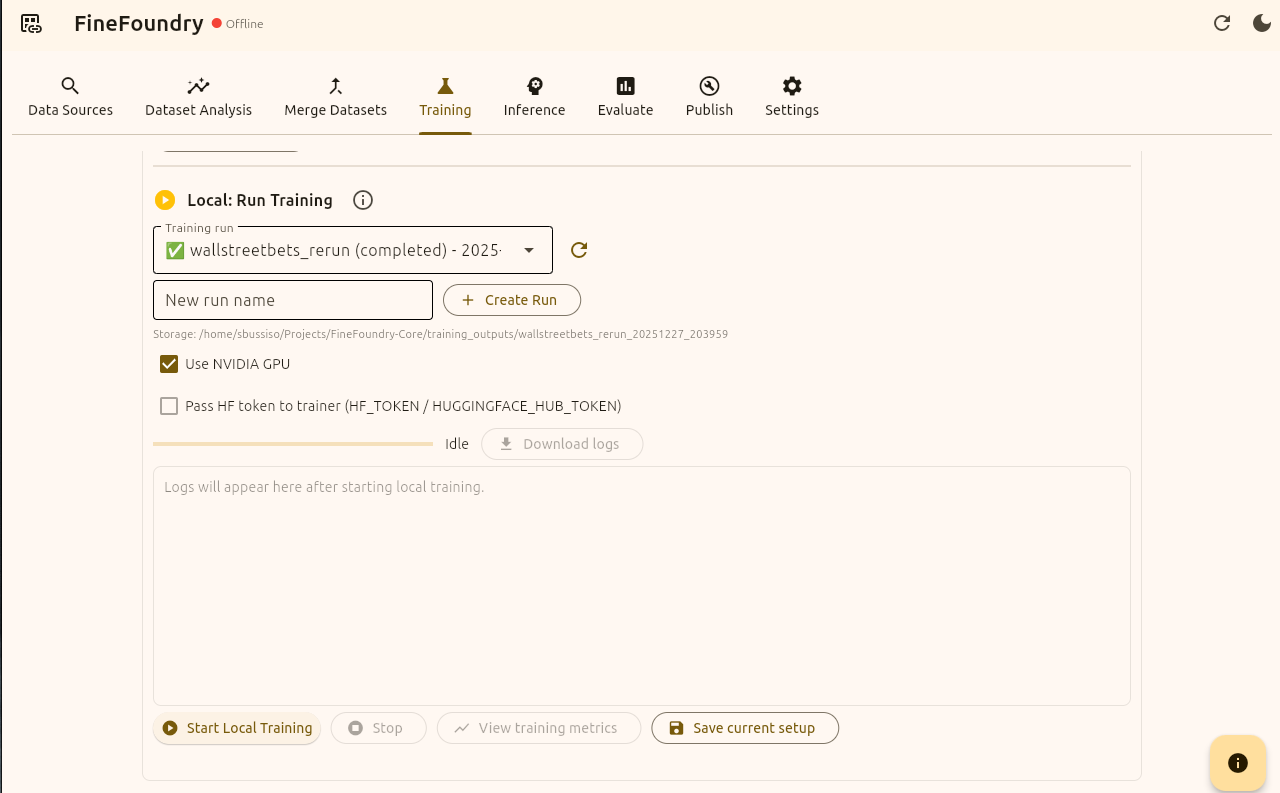
Training tab local run section
Now we have everything set up and we checked our training requirements and so now we are finally ready to fine-tune! Your successful fine tunes are also saved into the database for easy access. the “wallstreetbets_rerun (completed)“ you see in the image above is a previous run I did before this tutorial. Where it says “New run name“ name your training run and press the “+ Create Run“ button to name and save your run.
Next we will simply press “Start Local Training“ and we are off to the races!
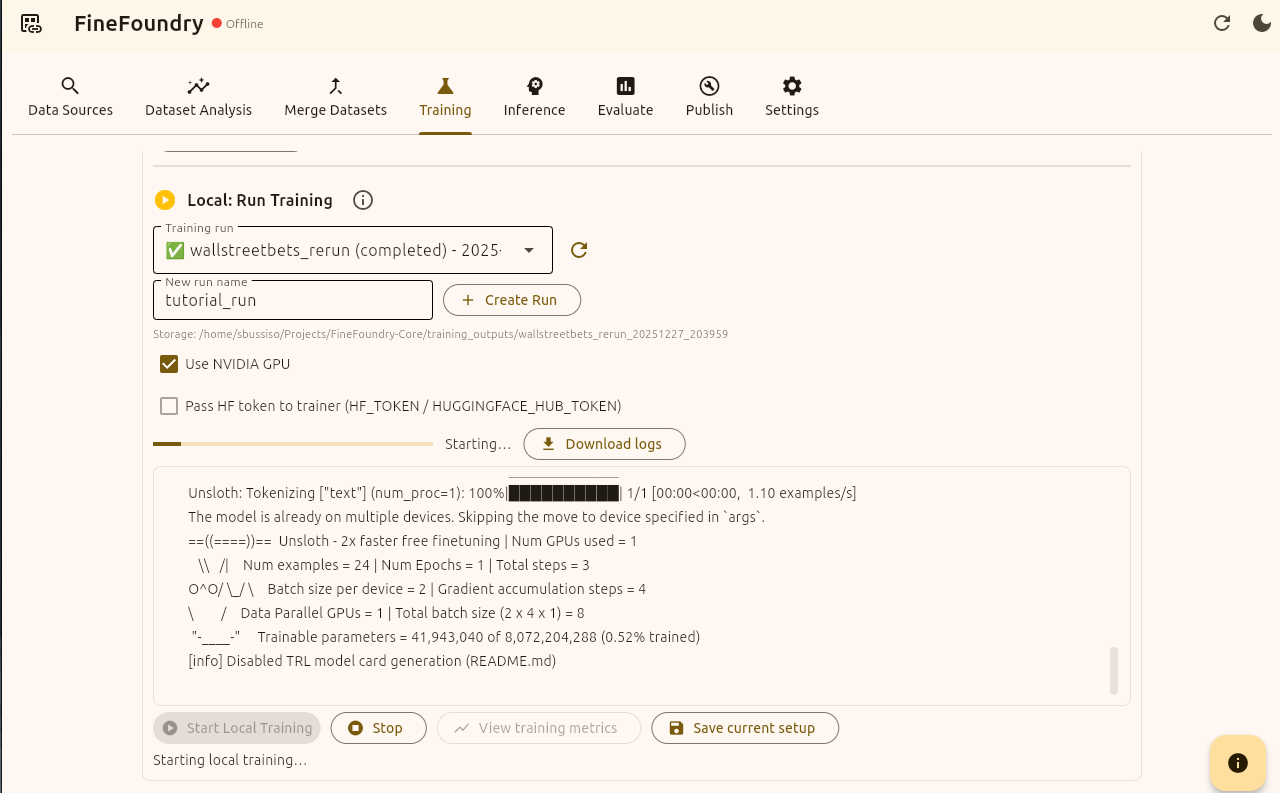
Training tab local run section logs and training
If successful you will see live training logs. After this finishes we have successfully built a dataset and fine-tuned a model from scratch, all locally and on your own hardware in offline mode! But wait were not done yet. Now that we have fine-tuned our model its time to test it out! After all how else will you know it worked?
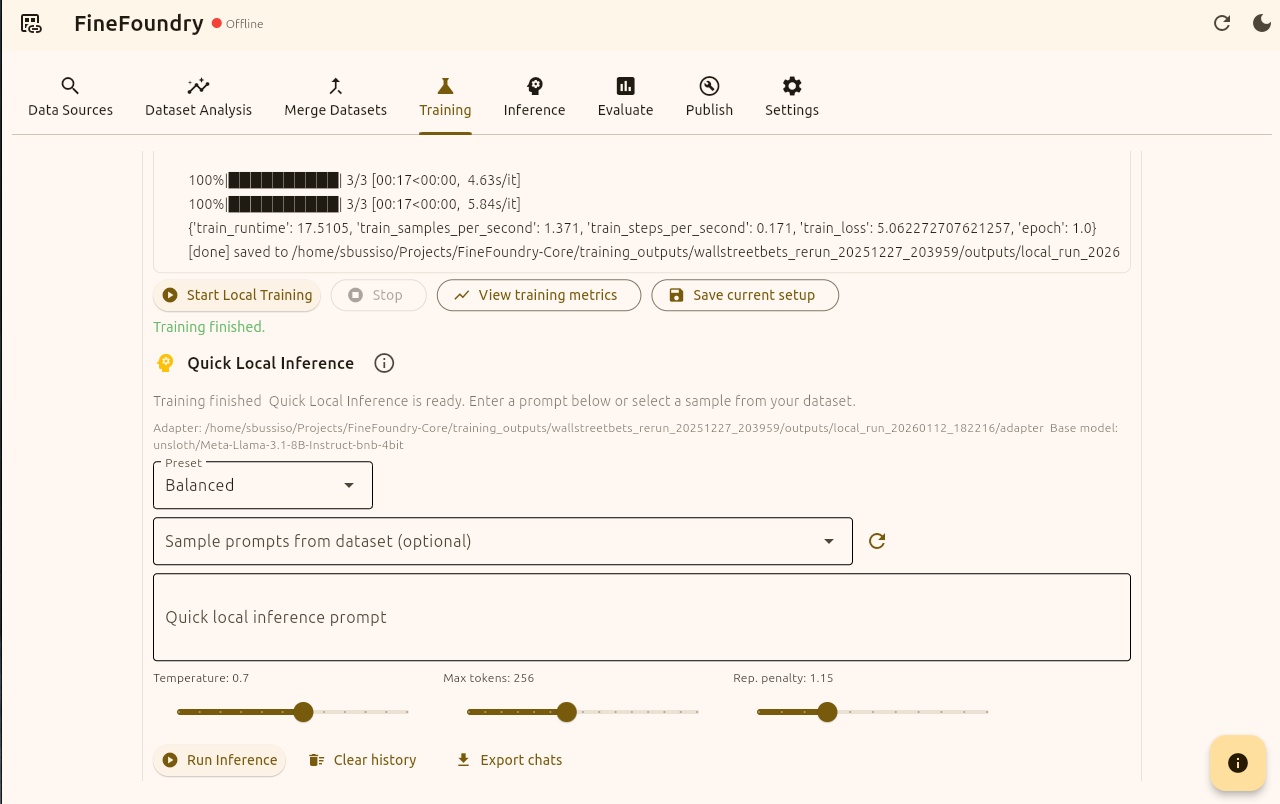
Training tab quick inference section
Now that we have successfully fine-tuned our model with our own custom dataset its time to test it out. Here we setting the Preset value to “Balanced“ which will give us a Temperature of 0.7, set Max tokens at 256 and the Repetition penalty to 1.15 (the Rep value punishes models for repeating themselves)
The Sample prompts from dataset drop down is optional. You can use this to use prompts directly from the dataset to directly compare the model output with the expected dataset output without having to write custom prompts yourself.
You can also just use the “Quick local inference prompt“ area to just write your own prompts and press “Run Inference“ to get your model response.
That’s it! We are officially done. You have just created a custom dataset using your own data sources, then you fine-tuned and tested an LLM with your own dataset! FineFoundry has other features and tabs in which we will go over in another tutorial.
